













As students, learning complex topics such as anatomy can often feel overwhelming and daunting. However, with the advancement of technology, education has become more interactive […]
In the Press

With years of experience and a talented team of developers, IT Craft offers comprehensive mobile app development services that can help turn your ideas into a reality and achieve your business objectives.

Turn your app ideas into reality with the assistance of our Android assignment help at AssignmentShar. From basic app layout to advanced programming techniques.

GetDevDone is a top-notch provider of various web development services, including white label web development and web app development. We’ll turn your ideas into life using the latest technologies and following the best security practices.

Workday HCM Provides you a single Manifesto to Manage Employees, Finance, Functional & Operational data, and other Organizational Activities.

Create professional-quality comics effortlessly with the Comic Maker at StoryboardThat.
Moose Math: A Fun and Interactive App for Primary Math
As technology continues to advance, the education sector is also constantly evolving. Gone are the days when textbooks and traditional teaching methods were the only means of learning. Today, there…
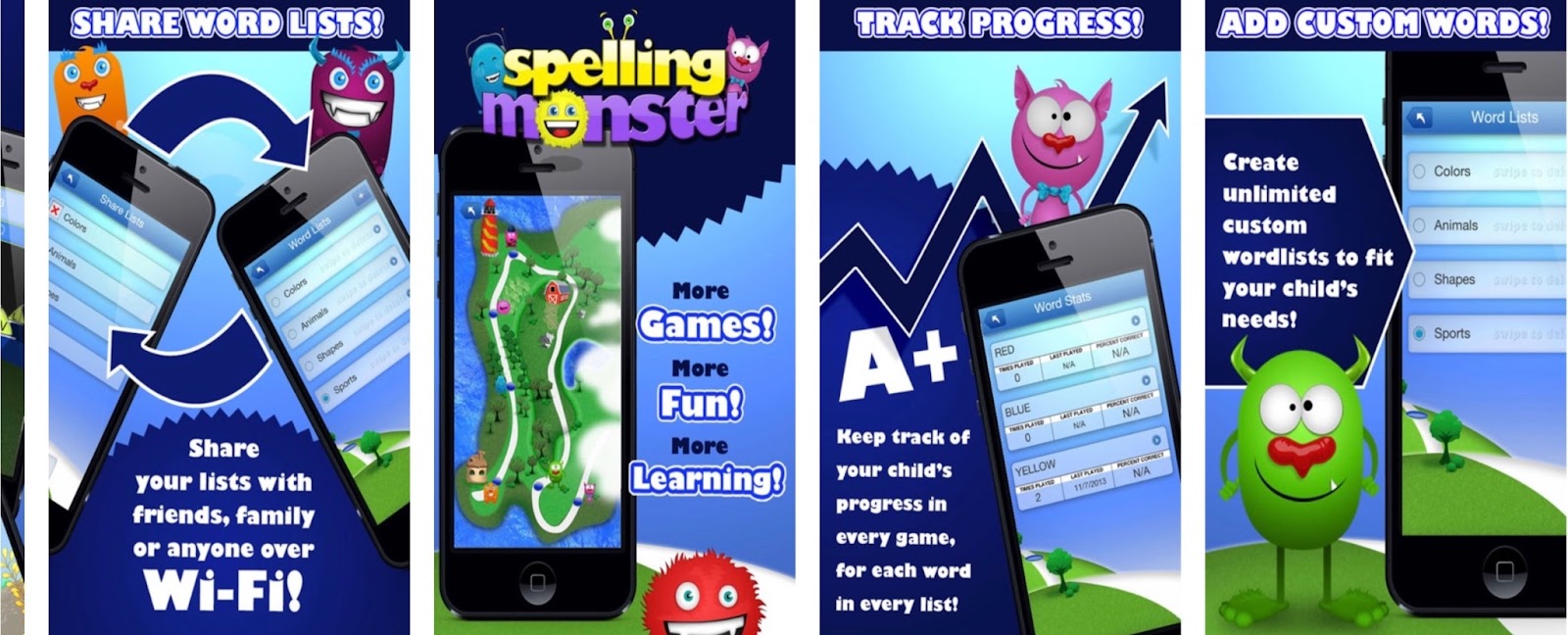
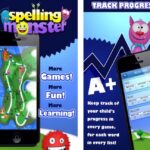
Spelling Monster – App for Practicing Spelling Words
Are you tired of the same old spelling drills and tests? Do you struggle to engage your child or students in learning their spelling words? Look no further, because Spelling…

Enhance Document Editing: Google Docs Layout Customization
Are you tired of scrolling through endless pages on your tiny phone screen while editing a document on Google Docs? Or frustrated with the limited layout options on your mobile…

Oregon Trail for Android: Pioneer Adventures Await
For those hailing from a certain generation, the Oregon Trail game on the Apple IIe computers remains an unforgettable part of their elementary school experience. The game was more than…
Room Recess: A Portal for Educational Fun
Room Recess stands out as a complimentary, advertisement-free digital space dedicated to educational gaming, conceived by a primary education professional. Presently, the platform boasts an […]

Free Timer: Your Solution for Efficient Classroom Management
In the arena of education, handling block schedules, especially in high schools and middle schools, presents a unique set of challenges. Students often grapple with […]
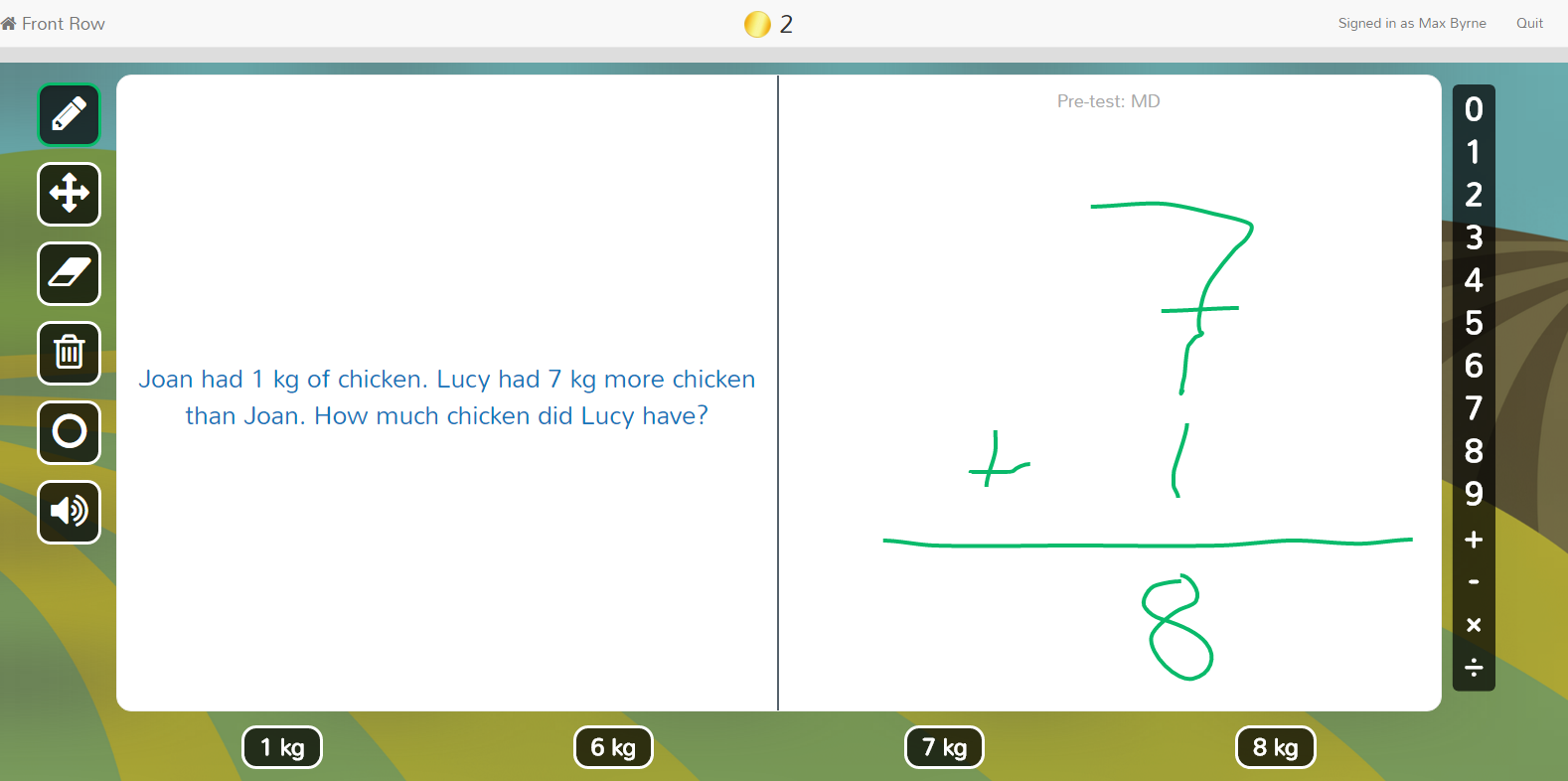
Level Up Skills: Front Row Math & ELA
Imagine a classroom where every student gets exactly what they need to grow. No more feeling lost in the crowd, no more feeling left behind. […]

How to Become an Effective Kahoot Host in Online Education
The Basics of Hosting a Kahoot Game Digitalization in education fosters innovative methods to make learning an exciting journey. One such remarkable medium is Kahoot, […]

Enhance Classroom Productivity with Our No-Cost Timer
Teaching within a block schedule presents its unique set of challenges, particularly when dealing with students in middle or high school. Keeping students engaged in […]

Best ViewPure Alternative: Clean Video Experience
In the digital era where online resources are pivotal in educational settings, a reader’s concern about ViewPure has spotlighted the importance of distraction-free learning environments. […]

Watchkin: Your Gateway to Focused YouTube Experiences
Introduction In an era where distractions are just a click away, finding focus can be a challenge, especially when it comes to online video consumption. […]
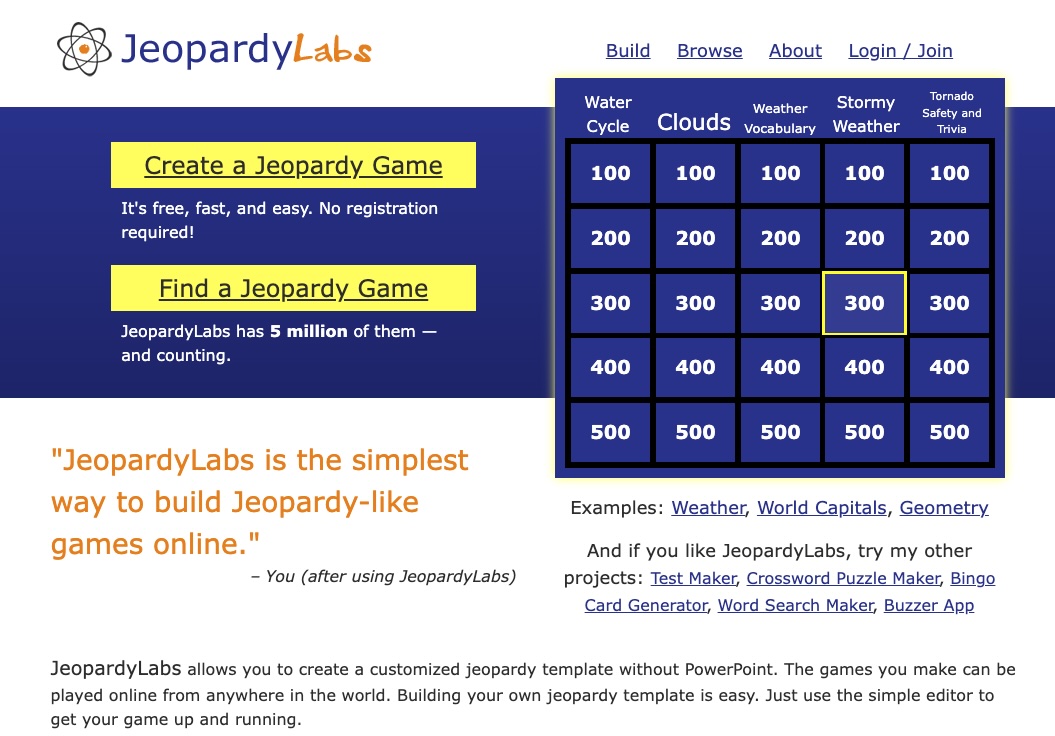
Jeopardy Labs: Create and Enjoy Custom Online Jeopardy Games
Introduction Jeopardy Labs has emerged as a groundbreaking platform, transforming the way we engage with educational games. This fascinating tool allows users to effortlessly craft […]
Duckie Deck: Educational Toddler Games for Fun and Learning
Introduction In the colorful and changing world of children’s education, Duckie Deck is a shining example of being up to date and fun. With this […]